> ## Documentation Index
> Fetch the complete documentation index at: https://docs.getmembrane.com/llms.txt
> Use this file to discover all available pages before exploring further.
# Import User-selected Data Collections
# Import User-selected Data
[Continuous Import](/docs/getting-started/product-integrations/data-integrations/continuous-data-import) describes how to import a data collection and keep it in sync when you know ahead of time what data you want to import.
This guide will help you import one or more data collections picked by your tenant out of available data collections in an external app.
## Data Source
To store which data collection the user selected to import, create a Data Source called "Any Data".
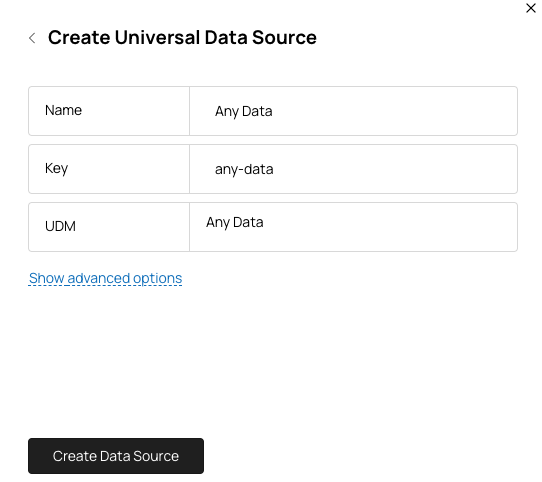 It will not point to any data collections by default—you'll have to configure it later based on what the user selected.
## Full Import
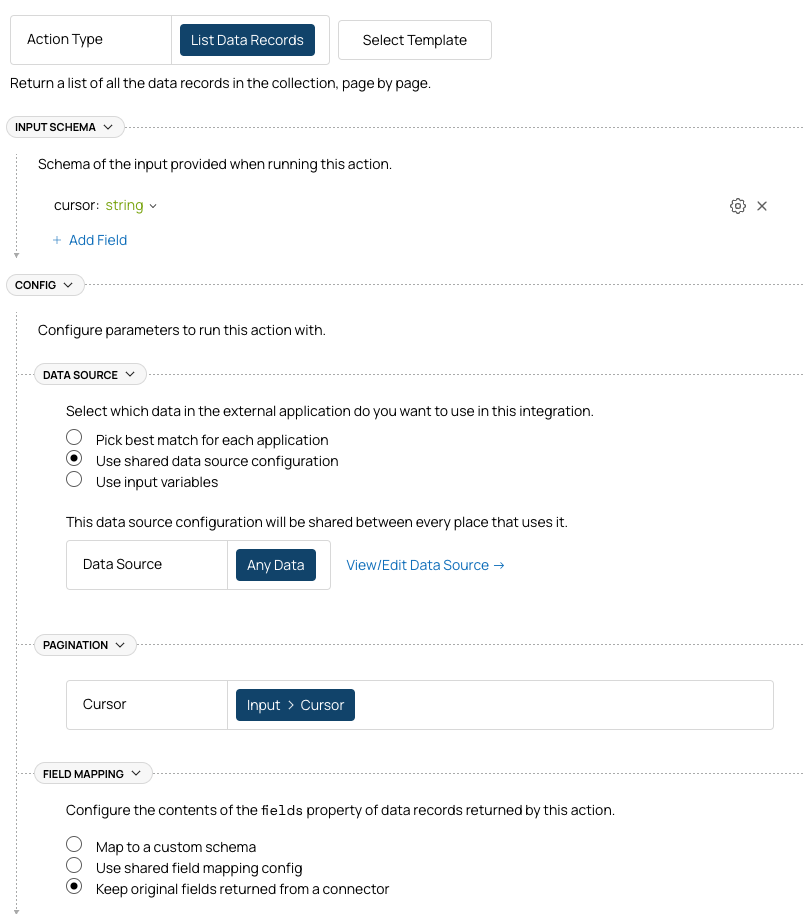
To import all the records from the user-selected collection, create a "Get All Records" action that simply lists records from the Any Data data source without any filtering or mapping.
It will not point to any data collections by default—you'll have to configure it later based on what the user selected.
## Full Import
To import all the records from the user-selected collection, create a "Get All Records" action that simply lists records from the Any Data data source without any filtering or mapping.
 ## Change Events
To get notified when data records are created, updated, or deleted in the user-selected collection, create a Flow that listens to these events. It looks like this:
## Change Events
To get notified when data records are created, updated, or deleted in the user-selected collection, create a Flow that listens to these events. It looks like this:
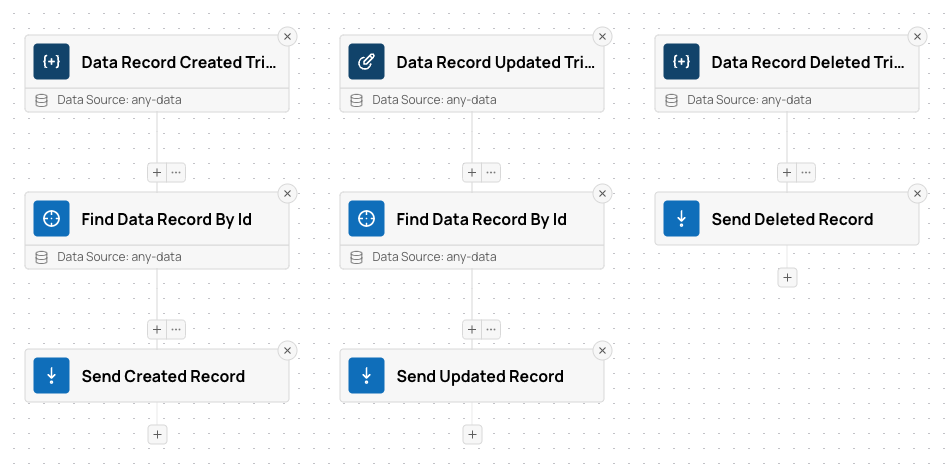 This flow subscribes to `data-record-created`, `data-record-updated`, and `data-record-deleted` events in the Any Data data source, fetches the full record for Created and Updated events (they don't always contain the full record by default), and sends the data to your application.
## Selecting Data Collection
To make this work, you need to let your user select a data collection. For this, use metadata from the connector.
To let your users select any data collection from any available integration, you can do the following:
* Show available integrations to the user: [Integration List](/docs/getting-started/product-integrations/integration-catalog)
* Let them connect to the selected integration if they haven't done it yet: [Connection](/docs/ways-to-use-membrane/embedded-ui/connection-ui/custom-connection-ui)
* List data collections available in the selected connection and patch the "Any Data" data source with the collection selected by the user: [Data Sources](/reference/workspace-elements/data-sources/data-source-instances)
## Multiple Imports
If you need to import not one, but possibly many data collections, you should:
* Create a unique ID for each import/data collection.
* Use this ID as `instanceKey` when referring to [Data Source Instances](/reference/workspace-elements/data-sources/data-source-instances), [Flow Instances](/reference/workspace-elements/flows), [Action Instances](/docs/how-membrane-works/actions).
This will let you create as many individually configured imports per user as you need.
## Collection Metadata
If you need to understand the structure of the data collection that is being imported, use [Data Collections](/reference/workspace-elements/data-collections).
It will let your application understand:
* What parameters the collection has or requires.
* What fields are available in the collection.
* What is the structure of those fields.
* Which other collections this one references.
This flow subscribes to `data-record-created`, `data-record-updated`, and `data-record-deleted` events in the Any Data data source, fetches the full record for Created and Updated events (they don't always contain the full record by default), and sends the data to your application.
## Selecting Data Collection
To make this work, you need to let your user select a data collection. For this, use metadata from the connector.
To let your users select any data collection from any available integration, you can do the following:
* Show available integrations to the user: [Integration List](/docs/getting-started/product-integrations/integration-catalog)
* Let them connect to the selected integration if they haven't done it yet: [Connection](/docs/ways-to-use-membrane/embedded-ui/connection-ui/custom-connection-ui)
* List data collections available in the selected connection and patch the "Any Data" data source with the collection selected by the user: [Data Sources](/reference/workspace-elements/data-sources/data-source-instances)
## Multiple Imports
If you need to import not one, but possibly many data collections, you should:
* Create a unique ID for each import/data collection.
* Use this ID as `instanceKey` when referring to [Data Source Instances](/reference/workspace-elements/data-sources/data-source-instances), [Flow Instances](/reference/workspace-elements/flows), [Action Instances](/docs/how-membrane-works/actions).
This will let you create as many individually configured imports per user as you need.
## Collection Metadata
If you need to understand the structure of the data collection that is being imported, use [Data Collections](/reference/workspace-elements/data-collections).
It will let your application understand:
* What parameters the collection has or requires.
* What fields are available in the collection.
* What is the structure of those fields.
* Which other collections this one references.